Wednesday, January 9, 2019

Web image blocks!

A specimen of the font Lobster.
Blocks of light adventure.


Find the code described in this post at GitHub!

Logical Problems

You've probably seen images laid out in such a way that they appear to be tiles or blocks in a wall where all the images are justified so there are no ragged edges. I remember that when I first did I spent a few moments casually pondering how it was down. Much, much, later I decided to create a simple website for my brother Alex (aka the pencilist) and display his art in block layout.

As the maintainer of the web site I had some requirements: I needed to be able to add new images so that they appeared as the upper left-most image, this meant that the number of rows and images that make up the rows would change; I didn't want to have to do any math when an image was added; I didn't want to copy and paste a lot of formatted HTML; I didn't want to update attribute values (like width and height) for older images when a new one was added and the older image's row might change; also what if I needed to move images around later or only display filtered images! After thinking about it for a little while I had an "A ha!" moment and came up with a solution. Now this is probably not a unique solution but it's interesting because there are two logical problems that need to be solved to create a layout like this.

Images in a row

Notice that in scrollable solutions the images are laid out in rows and each image in a row has the same height; however every row may have a different height. From this I inferred that a decision was made to include certain images in each row so the first thing I did was answer this question:

"How may images can be in a row?"

It occurred to me that a row could be defined as a vector of "blocks" each with an equal width. Based on an image's aspect ratio (width divided by height) I could assign each image a width in "blocks."

arThreeTwo: 3 / 2, // 1.5
arTwoOne: (2 / 1) + .2, // 2 (plus a small amount of buffer)

/**
 * Calculates how many blocks each image will occupy in a row.
 * @param {number} aspectRatio The width of the image divided by the height of the image.
 * @returns {number} The number of blocks.
 */
calculateBlocks: function (aspectRatio) {
    var blocks = 1; // portrait image
    if (this.arTwoOne < aspectRatio) {
        blocks = 6; // panoramic image
    } else if (this.arThreeTwo < aspectRatio) {
        blocks = 3;
    } else if (1 < aspectRatio) {
        blocks = 2.5;
    }

    return blocks;
}

I determined that I would display the images in a container so that each row was 800 pixels wide. Based on the appearance of a portrait image I decided that a row of six blocks would look good. Now iterating over the collection of all images from the beginning I create an array whose elements will represent the images in a row. I add the blocks the next image requires to the total number of blocks currently in the array, if the result is less than or equal to six I push the image onto the array otherwise a new array is created for the next row and the image is pushed onto the new array (taking care to handle the end of the collection where there may be a row that takes up less than six blocks).

I had an answer to the first question.

Proportions

The second question was much more simple to answer:

"How are the images in a row sized to fit exactly 800 pixels and all have the same height?"

The hardest part of answering this question (both questions really) is that the dimensions of some number of images has to be known; in this case at least the next six images that could potentially make up an entire row. For my implementation the information about the images is contained in an array of objects, including the dimensions of the images in the objects was trivial. However other possibilities exist including downloading a set of six images and measuring them in hidden <img> elements to determine their dimensions. This is more complex but it has greater flexibility since the size of the images doesn't need to be known ahead of time.

In any case once the image dimensions are in hand and all the images to be placed in a row are known the dimensions of the second and subsequent images in a row are scaled so that their heights match the height of the first image.

// First scale all of the image dimensions to the height of the first image.
var firstImage = images[0];
var sizes = [{ height: firstImage.height, width: firstImage.width }];

var b;
for (var i = 1; i < images.length; i++) {
    b = images[i];
    sizes.push({ height: firstImage.height, width: (firstImage.width * b.height) / b.width });
}

Add up the widths of the images to get the width of the entire row.

// Find the total width of all the scaled dimensions.
var totalScaledWidth = sizes.reduce(function (acc, x) {
    return acc + x.width;
}, 0);

Now scale the total row dimensions so the row width is 800. Doing so provides the display height that will be applied to all of the <img> elements in the row.

// Find the height that will allow all the images to fit the maximum
// width.
var newHeight = (firstImage.height * 800) / totalScaledWidth;

Finally calculate the display width of each <img> in the row.

for (var i = 0; i < images.length; i++) {
    // Update each image's dimensions to fit in the brick wall layout.
    image = images[i];
    image.displayWidth = Math.round((image.width * newHeight) / image.height);
    image.displayHeight = Math.round(newHeight);
}

Once I had the information for the images I could then set the height and width attributes of the <img> elements to size them appropriately (createElement is a helper function that returns an HTML element).

var img = createElement("img", { alt: image.title }, null, { height: image.displayHeight + "px", width: image.displayWidth + "px" });

There are a variety of concerns that are left as exercises for the reader such as: downloading the images in the desired order (newest to oldest) and so that they display reasonably quickly, indications to your user where images will appear, displaying the images in rows with proper alignment requiring a dose of CSS, and cropping images to maintain a specific row height (very long images) or minimum image width (very tall images).

Have a better solution? Let's hear about it in the comments!

Monday, June 29, 2015

Building a browser application using React

tl;dr - use Node.js-Browser-App on github to quickly get started making a React based web application built with Node.js

Lately I've been doing a lot of work constructing javascript-based applications that are meant to run in a browser. In some cases an application was meant to be used in a web browser and in other cases as a Chrome App (formerly called a Packaged App). Currently the React toolkit developed by Facebook and Instagram has achieved a certain dominance in web app development and it functions well in both environments.

One of the amazing strengths of React is the size of the ecosystem that has grown up around it. There are a large number of addons, mixins, and other projects that augment its capabilities. The sheer amount of functionality (code) available is staggering. But before I get too far into React I should really talk about Node.js. Node.js is simply a runtime environment for javascript code. Like React Node.js also has acquired a large ecosystem of code that can be executed in the runtime, perhaps most famously the "Node Package Manager" always referred to as npm.

npm helps solve one of the problems javascript projects have suffered from in the past: how to organize the code so that it can be understood by humans (file naming, directory structure, and small encapsulated chunks of functionality) and packaged for efficient delivery to a javascript runtime. One solution is to use npm packages with source code organized following CommonJS conventions. Both Node.js and npm understand CommonJS and can work with it directly but browsers can not. However as in all things Node.js + npm there's a package for that: browserify. Browserify is a toolkit that reads CommonJS files and converts them into javascript that a web browser can execute. Additionally Browserify supports "transforms" that can be applied to CommonJS source files before they are parsed and transform (modify) them in some way if necessary. Also Browserify can generate "source maps" so that later in the browser's debugger the original source files can be debugged rather than the bowserified files. As we've seen Browserify has been packaged so that it's available in the Node.js environment through npm.

Now back to React. React files are regular javascript except they support the use of JSX syntax. JSX is a little like HTML embedded in your javascript. Unfortunately neither javascript runtimes or browserify understand JSX, but there's a package for that. Through npm we have access to reactify, a browserify transform that will convert the JSX syntax into plain old javascript. Once the JSX is converted browserify can bundle up the code for a web browser.

Of course there are many other steps in preparing a web app for delivery to a server. Node.js + npm can do this too using a variety of task / build utilities, I chose to use gulp. Briefly here are some things you can do with gulp: bowserify (including reactify), conditionally affect stream piping (using gulp-if), copy and modify a JSON file (using gulp-json-editor, generate jsdoc documentation, minify output, copy files, and much more.

With Node.js + npm + gulp + browserify + reactify we can create javascript web applications where the code is organized in a manageable fashion by using CommonJS conventions and we get a high performance UI with React. If you think that those are a lot of pieces to put together from scratch you're right, so don't. You can get off to a faster start using the Node.js-Browser-App repository on github. This repository has all the components described above (plus a Flux dispatcher) so you can just copy the repo and start building a web app or Chrome App.

Incidentally, once you've got your project going you'll find a lot of cloud services can work with it. For example Microsoft's(!) Azure can be setup with webhooks from github so that every time your source code changes it will: fetch the updates from the repository, build using Node.js, and deploy the output.

Sunday, December 9, 2012

@font-face and Blogger: Easy Way

You want to use @font-face with Google's Blogger? I'll cover two different ways to do it; the easy way, with limited font choices, and (coming soon) the not as easy way, but you can use any font you have rights to.

A specimen of the font Lobster.
The Lobster font.

The easier solution is to find a font you like at Google Web Fonts. It's easier because Google generates the different types of font files needed for browser compatibility and more importantly hosts the font files for you. All you need to do is find a font you want to use and get the link to its stylesheet that will make the font available to other CSS. The link looks like this:

<link href='http://fonts.googleapis.com/css?family=Lobster' rel='stylesheet' type='text/css'>

Now that you have a link to the CSS file it needs to be included in the blog's template HTML. In the Blogger dashboard choose "Template" from the menu on the left and then click the "Edit HTML" button. A warning message will be displayed, click on "Proceed." Now is probably a good time to copy all of the HTML into a text editor and save it as a backup so it can be restored later if something goes horribly wrong. Now find the <head> element and add the link element right after it so that the HTML looks like this:

<head>
   <link href='http://fonts.googleapis.com/css?family=Lobster' rel='stylesheet' type='text/css'>

Now the font files will be downloaded to the viewer's browser but how do you use them with CSS? Google Web Fonts also shows the contents of the linked CSS file so you can see the properties needed to set it as a style. Styles can be added using Blogger's "Add CSS" feature under "Template" - "Customize" - "Advanced" - "Add CSS". For this example we can create a CSS class like

p.lobster {font-family: 'Lobster', cursive;font-style: normal;font-weight: 400;font-size: 18pt;color: #BF1A2B;}

and you can have text that looks like this (though I don't recommend it) by setting a class of "lobster" on the paragraph:

The lobsters are loose! Run for your lives! Cover yourselves in butter!

Part two of this soon to be two part series will cover the "Not so easy way of using @font-face with Blogger" which involves serving font files using Google's App Engine.

Saturday, November 17, 2012

Mobile web app fail

As an experiment I wanted to see if a web app could be created that would send images from a wi-fi enabled mobile device to a computer. The reason was that the computer could easily serve the web app directly to a user's mobile device and the user could then upload their images to the computer and both operations could be done without needing to download a native app from an application vendor or use a data plan.

The proof-of-concept requirements were fairly broad and simple: serve the necessary files that make up the web app from the computer, allow the user to choose image files, and upload the images to the computer. Serving the files was simple, I created a basic stand-alone server process that could respond to requests for files and also handle the image files that were uploaded to it via XHRs from the device's browser. The user requested the start page by scanning a QR code that launched the browser and navigated to the app's URL. Problems really started with the web browsers available on mobile devices.

The largest problem was the iOS web browser. Prior to recently released iOS 6 the iOS browser didn't allow the user to choose files for upload. The basic HTML "input" element with type "file" was not supported in the browser. It seems hard to believe this was an unintentional oversight on Apple's part. The practical effect was that this forced developers to create native iOS apps rather than allowing them to create a single web app for any mobile device. There will remain a large number of devices running iOS 5 and earlier versions of iOS for years to come. As developers we will be living with a crippled iOS browser for a long time. IE 6 anyone?

The next problem involved displaying thumbnails of multiple images. On my Nexus S phone both the native and Chrome browsers crashed after opening multiple images. Looking at the logs I found that the browsers were running out of memory. I was able to improve the situation considerably, but not entirely fix it, by setting the img element's width and height attributes to the size of the image that actually displayed rather than relying on CSS.

Once that problem was minimized I was able to select images, insert the thumbnails into the DOM and then upload the the files to the computer. Some positives from this experiment: all of the Android browsers had partial support for the File API (notable exception below), data URIs could be used to access the image information in the files, and finally @font-face support so I could use Font Awesome for the images on buttons and menus. Negatives: while the File API's File object is supported Android doesn't have multi-file select functionality for browsers. Each image file had to be chosen one at a time from the Gallery application which became tedious by the second file selection.

I'd like to mention that of the three browsers I used during development only Mozilla's Firefox browser for Android was able to reliably display and upload files. Unfortunately for the proof-of-concept web app it had to run on at least the iOS and Android native browsers. Other browsers like Firefox or Dolphin just don't have a large enough market share to make them an acceptable solution.

Having said that, my experience with the shortcomings of many mobile web browsers has reinforced my belief that Mozilla's mobile browser and Firefox mobile operating system are as important now as Firefox was ten years ago in helping to push innovation forward, especially on mobile devices, and to keep the web open.

Lastly a tool that was indispensable and made development easier and faster was desktop Firefox's Responsive Design View mode. In this mode (available under the "Web Developer" menu) the browser's viewport is resized to emulate various common monitor and mobile device screen dimensions or you can set custom dimensions as needed. Using this I was able to set the browser to the same size as my phone and do most of the development work on my desktop, only using the phone to periodically test functionality. If you need to design a web page that is "responsive" to different size screens or screens that change size, like switching from portrait to landscape then this tool is a must have.

Sunday, October 7, 2012

Set an Android ringtone

Android has a lot of quirks and annoyances, a common one is setting a custom ringtone, then later no ringtone plays when there is an incoming call (the phone is silent). This happens when the audio file is not located in the correct file location or the wrong application is used when choosing an audio file as a ringtone. Later if the phone is plugged into a computer and the USB file system is enabled the custom ringtone becomes unavailable and the OS "forgets" the ringtone. This is how to use and set a custom ringtone from an mp3, ogg, etc. audio file so that the phone won't forget:

  1. Connect your phone to a PC and copy the file to the folder \sdcard\media\audio\ringtones on your phone. You must create any of these folders that don't exist.
  2. Disconnect your phone from the PC.
  3. Select a contact and from the menu choose "Set ringtone". If given the option to choose an application to select the ringtone choose "Media Storage" and then select the "Always" button. Never use any application other than "Media Storage" to choose the audio file.
  4. From the list of available media choose your ringtone (the name that appears depends on the IDv3 tags in the audio file you added). But wait! What if you don't see the file you just added? The media list is populated by the OS scanning periodically for audio files and it can take some time to discover the new file. So you have two options: first is to just wait a while and retry until the file shows up in the list, second you can clear the media cache and force it to rebuild which still means waiting a while. To clear the cache do this: menu - Manage Apps - All - Media Storage - Clear data. Now reboot the phone and wait for Media Storage data to be rebuilt. This can take tens of minutes. Eventually your audio file will show up in the list.

You can also set the phone's default ringtone by selecting System settings - Sound - Phone ringtone in place of step 3. That's it, now your ringtones should always be available even after treating the phone as USB storage.

Sunday, July 22, 2012

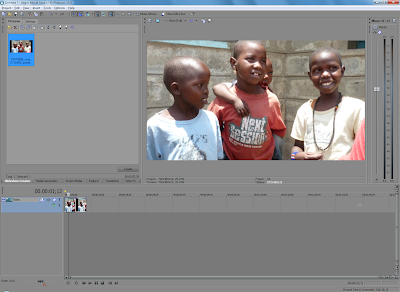
When Canon G1X video and Sony Vegas collide

Do you end up with periodic black frames followed by bright ones when editing video from Canon's G1X camera using Sony Vegas Movie Studio 10? If so try re-encoding the camera generated MOV files using Huffyuv (which is lossless) before editing them in Vegas.

Canon's G1X camera is capable of capturing H.264 encoded video and storing it in an MOV file. The video captured is 1920x1080 at 23.976 frames per second (you can read about this not quite 24fps if you're interested).

I had no problem opening the video files in Sony Vegas and working with them in any of the tools. For my initial test I simply stacked up a few short clips directly from the camera and started the render to H.264 process. In playback the first minute or so of the rendered video was fine but eventually a black frame was inserted into the middle of a clip, not at a transition, and bright frames followed it for a second or so before normal brightness slowly returned. Over the course of my five minute video this happened several times.

I decided to avoid using the H.264 encoded camera input by using ffmpeg to convert the camera video to Huffyuv encoded video since this would give me lossless video to experiment with. (And now a little detour getting the Huffyuv codec installed on my Windows 7 system so that it would be available for Vegas.) Once that was done I opened the Huffyuv video using Vegas in the same order that I had done before with the camera video and rendered to H.264. This time the resulting video played back without any defects.

It appears to me that Sony Vegas is not really capable of handling the 23.976 frame rate properly when working with H.264 encoded 1920x1080 input and periodically inserts a black frame during the output render. When the output is then H.264 encoded the black frame affects the compression of following frames, making them brighter.

The summary: Canon G1X video should be converted to a lossless encoding (Huffyuv works fine) before being edited on Sony Vegas 10. Other versions of Vegas may or may not need the same treatment.

Tuesday, February 21, 2012

Synchronizing multiple jQuery ajax calls using the when function

There is a lot of information about jQuery's ajax() function the jqXHR object and using jqXHR as a Deferred object with the when() function, but I couldn't find any examples that illustrated all this functionality working together.

The problem I solved using ajax() and when() is not unique or unusual, I had an unknown number of simultaneous ajax() calls to make and wanted code execution to continue on a single callback function when they had all completed. This is exactly the type of situation that Deferred objects and the when() function were created to handle. If you are used to working in multi-threaded environments you can think of when() as a kind of synchronization object. You can pass multiple jqXHR objects, returned by ajax() functions, to when(). You can chain a then() or done() function to the Deferred object that when() returns and the callback function you pass as an argument to the chained function will be invoked after all of the ajax() calls have completed.

Something I wanted to do to solve my problem but didn't know how to do, or even if it was possible, was to pass an unknown number of jqXHR objects to when() and get back the results for each jqXHR. One of the strange and wonderful things about javascript is that functions are objects and as objects they can, and do, have their own functions! Another peculiarity is that Javascript functions will take any number of arguments, regardless of how the function is originally defined, this matters because it means when() can take any number of Deferred objects as parameters. If you know each of the Deferred objects ahead of time you can simply pass them to when() as parameters (e.g. $.when(deferred1, deferred2)). If you don't know the number of objects you can gather them together in an array and pass it to when() using the apply function. The apply function takes an array of objects and passes them to its owner function as a set of parameters (be warned that the number of parameters a function can accept is going to be limited by the javascript environment, don't go crazy).

Now I knew how to pass an unknown number of jqXHR objects to when(). How do I get the results of the ajax() calls? The when() function returned a Deferred object and I passed its done() function a callback function to invoke when all the ajax() calls were, well, done. I couldn't find any examples of what this callback function should look like when an array of Deferred objects were passed to when(). My initial thought was that an array of result objects would be passed to the callback, but the single argument I defined only had the result of the first ajax() call. After a long time of experimentation, fruitless searching, and head scratching I suddenly remembered the arguments local variable that is available in every function. I realized that my callback function was being passed a result object as a separate parameter for each ajax() call. Sure enough I found that the length of the callback function's arguments matched the number of jqXHR objects passed to when() and that iterating over it I could get a result object for each call.

So finally here is a code snippet illustrating how to pass an array of jqXHR objects to when() and get back the results! It's easier to look at the original Gist or you can try it out in jsfiddle to see it work.

One final technical note: the jqXHR is not really a Deferred object, it implements the Promise interface but for the sake of simplicity I called it a Deferred object.

Tuesday, December 13, 2011

Facebook Graph API tweaking: fields

Want to improve the performance of your Facebook Graph API calls? Try trimming your requests down to just the information you need. During recent optimization and testing of some Facebook Graph API client code my colleague Bob determined just how much time could be saved by tuning the API requests. Typical requests result in the return of a default object, for example this URL

https://graph.facebook.com/6547384565867889

returns this album object:

{
  "id": "6547384565867889",
  "from": {
    "name": "John Doe",
    "id": "9834439837"
  }, 
  "name": "Mobile Uploads", 
  "link": "https://www.facebook.com/album.php?fbid=6547384565867889&id=9834439837&aid=743987489", 
  "cover_photo": "748397943639", 
  "privacy": "custom", 
  "count": 1, 
  "type": "album", 
  "created_time": "2011-11-24T16:04:54+0000", 
  "updated_time": "2011-11-24T16:04:55+0000", 
  "can_upload": false
}

The client application doesn't need most of this information, all it needs are the id, name, photo count, and when it was created. By adding the optional fields parameter with a comma separated list of field names to the request:

https://graph.facebook.com/6547384565867889?fields=id,name,count,created_time

an object with only the requested information is returned (apparently Facebook gives us "type" for free):

{
  "id": "6547384565867889", 
  "name": "Mobile Uploads", 
  "count": 1, 
  "created_time": "2011-11-24T16:04:54+0000", 
  "type": "album"
}

Not only does this result in less information being transmitted to the client, more importantly it results in considerably shorter response times from Facebook. It seems that retrieving this information requires significant lookup effort on Facebook's servers and asking for less information means less rummaging through the datastore for all the bits. Bob found that getting 57 albums containing 2,434 photos from his account using the default request took 90 seconds. After adding the fields parameter with only the fields required it took only 40 seconds, less than half the original time! Of course YMMV based on the network, we also found that eliminating likes and comments had the largest effect in reducing response time. If you are working on an application that gets large amounts of data from Facebook it may be worth the effort to consider what information is being provided and only get what the client needs.

Monday, November 28, 2011

Facebook client-side authorization

"OAuth"

This one word can make software developers tremble in fear. Add "Facebook" to it and those same developers start sliding the monitors on their desks together to hide behind, like pioneers circling the wagons at night.

Granted things are better now than they used to be; OAuth 2.0 and the Facebook Graph API are much easier to work with than the old REST API with OAuth 1.0 (Remember signatures? No? You're lucky). However authorizing an app or logging in with Facebook can still be a challenge. I really wanted to be able authenticate as a Facebook app in a single HTML file with javascript interspersed just to see if it could be done in one file. What I've found is, that can't be done, but something almost like it can be.

Originally I had one page that would navigate based on the current Facebook login state which was determined by the parameters passed to the page. Roughly the Facebook authorization workflow was:

  1. App page initially displayed in a Facebook iframe: no access_token parameter.
  2. Navigate the browser window (not the iframe) to the OAuth dialog. Pass the page URL as the redirect parameter.
  3. User authorizes / logs in.
  4. App page is now displayed in the browser window with the access_token (remember we left the Facebook iframe when navigating to the oauth dialog), navigate to the app's Facebook canvas page and include the access_token in the canvas page URL.
  5. App page is displayed in the Facebook iframe and now it has the access_token.

This could work accept the Chrome browser only allows two redirects and this scheme requires three. After flailing with various fruitless searches ("facebook" + "javascript" + "login" does not yield a lot of helpful hits) I found a cached copy of this page that had the missing piece I needed, it used the Facebook Javascript SDK to determine if a user was logged in or not. I changed my code to use this method and then navigate to the oauth dialog or launch the app based on the result. This is the final workflow:

  1. App page initially displayed in a Facebook iframe: app not authorized / user not logged in.
  2. Navigate the browser window (not the iframe) to the OAuth dialog. Pass the app canvas page URL (not the URL of the HTML file) as the redirect parameter.
  3. User authorizes / logs in.
  4. App page is displayed in the Facebook iframe: app authorized / user logged in. Launch the app.

So there you go, authorizing an app and logging into Facebook done entirely client-side with one HTML file that includes the Facebook Javacript SDK (full disclosure: I also included jQuery for convenience though the code could be rewritten to avoid using it). You can try this code or use it by getting the source from this github gist (easy) or copy and paste it from the horribly clipped embedded view below (hard).

Saturday, November 26, 2011

Animated menu for a web page

I'm working on revamping Smashingline and wanted to make the menu at the top a little more interesting. I decided to create a menu with two "pointers." One to point at the item your cursor is currently over (highlighted) and another to indicate the current item (selected). The menu was made with HTML5, Javascript, and CSS. I also used jQuery to animate various elements. I was inspired by the page eCSspert to use only HTML and CSS for the graphic elements.

Essentially the menu consists of a "menu bar" div with "menu item" divs above it. When the cursor passes over the bar its mouseover event is fired and the highlight pointer is shown. When the cursor moves from one menu item to the next the animation is triggered causing the pointer to move. One of the problems with this approach is that when transitioning from one item div to another the bar div fires a mouseout event even though the location of the cursor is still "inside" the bar div. Event propagation is probably one of the most common problems when working with mouseenter and mouseout events. Fortunately jQuery has solved this problem by implementing its own mouseleave event which was introduced by Microsoft and is supported natively in IE. The mouseleave event is only fired when the cursor actually exits the region of an element, no matter the number of child elements. Very handy.

The pointers are constructed from HTML div elements and CSS. Generally each of the two pointers has a base div that is the same width as the menu items. The div's height and setting its overflow property to hidden dictates how much of child div which is rotated 45 degrees is visible.

Finally since you may want the web page to take some action once the user makes a choice a callback can be set on the MenuMarker class. This function is invoked once the animation is finished. The demo here displays an annoying alert dialog with the the text from the menu item displayed.

The source code (in three separate files) is available for download from a Github Gist. These can also be combined into a single HTML file and loaded dynamically as needed using the jQuery load method.

Saturday, March 12, 2011

Creating a Nexus S Wallpaper

So you've got a snazzy Nexus S Android phone and you want to use one of your own photos as wallpaper? Well it certainly can be easy enough, open a picture using the Gallery application then from the menu choose More - Save As - Wallpaper. Drag the crop box around and resize it by touching a side if necessary and your picture becomes the wallpaper. But since only a vertical slice from the wallpaper is shown on screen maybe you couldn't select as precisely as you wanted and an important part of the picture isn't visible. Or maybe you want more control over the final image, like resizing it to the actual wallpaper dimensions.

The first thing you need to understand is that only a small region of the wallpaper is shown at any time. This is because there are five different "desktops" that can be scrolled side-to-side. As the user swipes their finger across the screen the other desktops are shown and the wallpaper image scrolls slightly along with the icons and widgets. Because of this the wallpaper image needs to be wide enough to cover all five of the desktops. It turns out that the final wallpaper size is 960 by 800 pixels. The screen size is 480 by 800, so with each finger swipe the image moves by 1/5.

The starting picture is a 3:2 aspect ratio image. It has been resized so that it is 1200 pixels wide by 800 pixels high.

Original 3:2 aspect ratio photo

The first thing is to determine what the center screen should look like.
Selection indicating the region that will be visible in the center desktop. Note that the selection is not centered in the picture.

Once that's done the final wall paper region can be defined by expanding the selection so that it's 960 pixels wide.
The final wallpaper 960 pixel wide selection

Finally crop the image and save it to your Nexus S. Use the Gallery application to view the image and choose the Wallpaper menu item; for some reason Google decided that the crop box will never select the whole image, so you'll need to move and resize it to select the whole picture. There you go, your own custom wallpaper.
The final wallpaper image.
Creative Commons LicenseThis photo is licensed under a Creative Commons Attribution-ShareAlike 3.0 Unported License.

Sunday, December 5, 2010

Loopy DVD Menu Videos

My first DVD using Sony's DVD Architect has a video background for the menus. Being reckless I started creating the video for the menu before learning anything about DVD Architect (DA). I had my video fade up from black at the start and fade down to black at the end. In DA I added the video as the background media then previewed it. The video played and as I anticipated it looped back to the beginning and started again. Seeing this I had an epiphany; if I added a final transition at the end so that the last frame of the video was identical to the first frame at the beginning of the video it would appear as if the menu video was an endless loop. This was quickly followed up with another thought, "Video loops just like every professional DVD menu - doh!" I went back and re-edited and re-rendered my video for looping. In the DA preview I noticed a choppy gap as the video looped but convinced myself it was just an artifact of the preview, the final DVD would be fine.

Later when I watched the actual DVD I saw the choppy transition still existed. At that point I had been working on the DVD and its contents for months and my interest in solving (if it was even possible) a minor issue was very low.

Then recently I happened to be watching the main menu on the documentary "Good Hair" and noticed that when it reached the end of the video there was a brief transition to what appeared to be a different resolution still image of the main menu, then the video started playing again. That got me thinking about the loop transition on my DVD. It turns out that the main reason the loop was choppy was because the length of the menu video was calculated incorrectly.

On the Menu Page Properties under General is an entry for Menu length, the default value is Auto calculate and the length it has calculated is in the read only entry Length just below.

The Menu Page Properties with Auto calculate selected.

In the case of my video the calculated length was about 0.2 second longer than the actual video and this seemed to cause problems during playback. The solution was to set the actual length of the video manually. The actual length of the video can be found in the lower right of the Timeline pane, however the length is shown in seconds and frames. This not entirely helpful because the time to be entered in Length must be in minutes, seconds, and milliseconds. To get the time make sure that the media timeline pane is showing; from the menu select View - Timeline. In the time bar above the video right-click and select Time and Frames.
Changing the display to Time and Frames in the Timeline.

Zoom in on the timeline so that a hash mark appears for each frame, now click to place the cursor at the last frame you want to show which is probably the last frame. Now right click the timeline bar again and select Time. The length of the video is shown on the left side of the pane right above the video.
Set the display to Time and the actual video length is shown.

Return to the menu properties and click on Auto calculate and a list appears; choose Specify. Now the video time determined above should be copied to the Length value.
Specify the actual video length.

Preview the menu and you should find that it loops seamlessly from the end of the video back to the beginning. I don't understand why the estimated length doesn't match the actual length, guesses include: slight discrepancies between the audio and the video (i.e. the audio track is longer), the data used to calculate the length is bad or the calculation formula is wrong. In any case it seems easy enough to correct to create professional looking menus with video backgrounds.

I learned a few other interesting possibilities during this exercise. One is that the loop point defines the beginning of the loop, this is how some menu videos have an introductory part that is only shown once along with a location to start loop playback so that there is a seamless loop. Another possibility is that when navigating from menu to menu a "transition video" can be inserted between them. When a viewer selects a button, instead of navigating immediately to the next menu the link connects to a video that has been placed at the root of the DVD file structure. The End Action of the transition video then links to the menu to be displayed. This is a fairly common technique I have seen on several of the more highly produced DVDs.

Saturday, November 20, 2010

Simple Secure Email

"The right of the people to be secure in their persons, houses, papers, and effects, against unreasonable searches and seizures, shall not be violated, and no Warrants shall issue, but upon probable cause, supported by Oath or affirmation, and particularly describing the place to be searched, and the persons or things to be seized."

- the fourth amendment to the United States Constitution

Despite the strained avowals by certain U.S. Supreme Court justices to hold that the Constitution is "dead" it is obvious to anyone with average intelligence that the intention of the fourth amendment is that citizens are allowed to have private correspondence, records, and possessions. It is unlikely that the eighteenth century authors and legislators ever conceived of records that existed in any form other than paper but today people communicate through a wide variety of methods. Unfortunately many of those methods of communication are insecure, including email. Currently email is transmitted through plain text, it is easy to capture this text as it moves across the internet from sender to receiver. To me it seems obvious that long ago it should have become standard for email to be encrypted for transmission (some proprietary services like Blackberry's "push email" encrypt the messages but an increasing number of governments are pressuring Blackberry to give them access to the secret keys that will allow the messages to be decrypted) but automatic encryption is unlikely to happen now for a variety of reasons.

This post will briefly outline a method for sending and receiving encrypted email. First it is important to understand that both the sender and receiver must agree to encrypt their email. If a sender wants to encrypt a message the receiver must have already provided a "public key" to the sender to allow the sender to encrypt a message. These instructions are meant for the everyday email user, it is not a technical discussion of encryption methods.

In this method the encrypted email can not be read in a web browser the way Yahoo Mail or GMail are using Internet Explorer or Firefox. Both reading and encrypting messages are done using the email application Thunderbird. Your computer will need to be connected to the internet for Thunderbird to access your email, but a web browser is not required.

You will need a flash drive (sometimes called a thumb drive). Thunderbird will be installed onto the flash drive.

First create an email account using GMail. If you know what IMAP is, how it works, that it is available on your preferred email service and you can configure it, feel free to use it. Otherwise GMail will be the simplest choice.

Second log into your new GMail account to configure IMAP. Click "Settings" in the upper right. Under Settings click "Forwarding and POP/IMAP." At the bottom is a section labelled "IMAP Access." Click "Enable IMAP" then click the "Save Settings" button.

GMail IMAP settings
GMail IMAP settings

Next download Mozilla Thunderbird Portable from PortableApps.com. Plug the flash drive into your computer and follow the installation instructions. Launch Thunderbird. It will prompt you for information about your email account.
Entering email information into Thunderbird.

It is most secure to uncheck "Remember password" but it is much more convenient to leave it checked. Remember that if you lose the flash drive anyone who finds it can use it to access your email account. Click the "Continue" button and the application will get the setup information for GMail. Click "Create Account" and Thunderbird will start and connect to your account.
Thunderbird has automatically configured the settings to get your Gmail.

The final step is to install Enigmail. PortableApps has provided a very simple install procedure and links to the software that is needed. Once Enigmail is added to Thunderbird you will need to setup encryption. Select "OpenPGP" then "Setup Wizard" in Thunderbird Portable. Follow the instructions, unless you know otherwise use the default values. To allow people to easily send you encrypted email you should allow your public key to be placed on a key server. If someone wants to send you email (or you want to send email to someone) the key server can be queried to see if a public key is available for an email address.

Create email normally, the first time a message is sent to a particular email address you will be prompted to select the public key of the email recipient. The outgoing message will be encrypted using the recipient's public key. If the recipient doesn't have a public key then the message cannot be encrypted and will be sent in plain text. When you receive an encrypted message you will be asked to enter your passphrase (created using the OpenPGP Setup Wizard) and the message will be decrypted and displayed.

Remember that wherever you store the private key created during the Setup Wizard must be kept safe. If someone gains access to the flash drive with Thunderbird Portable they can get your private key, and with it your encrypted email can be read.

In summary:

  • Create a GMail account.
  • Enable IMAP for the GMail account.
  • Install Thunderbird Portable on a flash drive.
  • Install OpenPGP and Enigmail on Thunderbird Portable.
  • Create a public / private key pair and share the public key on a keyserver.

Wednesday, November 10, 2010

Of Photo and Video Aspect Ratios (Surviving Vegas Movie Studio 10)

Creating "slideshows" of still photos for a video using Sony Vegas seems straightforward: round up some images using the Slideshow Creator, click the "Create" button and a slideshow appears in a video track. If only it were that simple.

Have you noticed that your photos, especially portrait oriented photos, are missing a lot of the picture? Have you thought about the aspect ratio of your output video? Vegas adds photos to a video track in a "crop to fill" manner, that means it will try to fill the output video frame with image data, even if a photo needs to be cropped to do so. For example this photo of three girls has a 3:2 aspect ratio. If it is placed into a Vegas project that has the "NTSC DV Widescreen" template set it will be cropped on the top and bottom to fit the 16:9 aspect ratio.

Original 3:2 aspect ratio photo

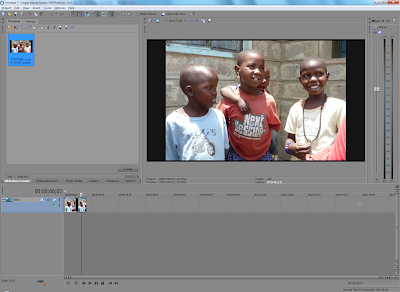
3:2 aspect ratio image added to widescreen DVD project
3:2 aspect ratio photo added to a widescreen DVD project, the photo is cropped at the top and bottom

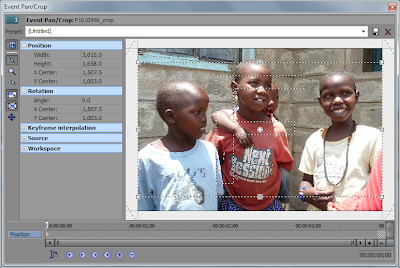
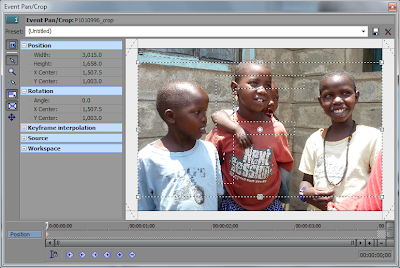
The screen capture below of the pan and crop tool shows how the original photo has been cropped. The tool can be used to manually "zoom out" and remove the cropping, but if there are a large number of photos in the slideshow doing that takes a long time.
3:2 aspect ratio photo cropped to widescreen DVD project shown in the pan and crop tool, dotted lines show the photo cropped at the top and bottom

The solution is to pad the images before importing them using the Slideshow Creator. When the photos are padded so that the resulting images have the same aspect ratio as the output video frame they will not be cropped. My personal preference is also to resize the images so that they have the same dimensions as the output video frame. This is all straight forward unless the images will be used in a widescreen DVD video. The frames of a widescreen DVD video have the dimensions 720x480 pixels, however the widescreen format is anamorphic, and the image displayed on screen will have the dimensions 873x480. So when padding photos for a widescreen DVD the dimensions of the padded image are 873x480.
Original 3:2 aspect ratio photo padded to 873x480 pixels

Photos can be padded and resized using any number of image editing tools. Irfanview can be used to resize the images, then in its Thumbnail viewer index prints can be created with one photo per page, no borders or image information, with the page size set to the dimensions of the output video frame. It's also possible to choose the color that will be used to pad the photos. Other applications can also be used to create the padded images including the use of Actions in Photoshop or scripts in Gimp. Once the images are padded they can be used as input to the slide-show.
3:2 aspect ratio photo with padding added to a widescreen DVD project, the photo is not cropped

The pan and crop tool shows that the image is no longer cropped.
Photo shown in the pan and crop tool has no cropping by default.

Of course whether your images are cropped or have padding is a personal preference. If you don't mind losing image data then accept the default crop or use the pan and crop tool to select the part of the photo that should be visible. However there is a glitch if you are going to output your video in different formats, like widescreen DVD and Blu-Ray. The aspect ratio of whichever Template is set on the project when the slideshow is created will be used to crop the photos when the Template is changed. The images below show the original photo added to a project with the "NTSC DV Widescreen" Template selected. Then the project template was changed to "HDV 720-30p". Now the photo is cropped at the top and bottom and padded at the top and bottom, this is the worst possible outcome.
Photo added to widescreen DVD project, then project changed to HD 720. Top and bottom of the photo are now cropped and padded

The pan and crop window shows what has happened, the frame being used to crop the photo has the widescreen DVD aspect ratio, the HD aspect ratio is not the same, so now the photo is cropped, then padded. The frame aspect ratio can be reset to the HD aspect ratio using the "Preset" list at the top of the window.
Photo added to widescreen DVD project, then project changed to HD 720. Top and bottom of the photo are now cropped and padded

The photo padded for widescreen DVD now has padding on all sides.
Photo added to widescreen DVD project, then project changed to HD 720. Top and bottom of the photo are now cropped and padded
Photo padded for a widescreen DVD project has had the project changed to HD 720. All sides of the photo are now padded

So when creating a slideshow where it is desirable to see the whole photo the best practices are: resize the photos to fit into the output video frame, if necessary pad the photos so that they have the same dimensions as the output video frame, create image files from the photos that match the output video frame size (i.e. don't use images created for a Blu-Ray slide show in a widescreen DVD slideshow).

But there is still so much more about slideshows to discuss, like markers, color correction, and pan and crop; those will all have to wait for a future post.